
Profile Management: Password Recovery, Email & Security
A complete guide to managing your BitHash account profile: resetting forgotten passwords, updating contact information, changing email, and updating wallet addresses.
1. Account Security Architecture
Defense-in-depth principles governing your BitHash profile settings
Your BitHash profile controls access to critical digital infrastructure and financial parameters. Maintaining updated contact details and security credentials ensures uninterrupted telemetry notifications and payout protection.
All modifications to profile parameters (email, telephone, password, or payout address) are logged in an immutable cryptographic audit trail and guarded by multi-factor authentication.
2. Forgot Password & Account Recovery
Secure self-service password reset workflow with cryptographic tokens
If you lose access to your password, you can initiate self-service recovery from the login page:
Execution Steps:
Access the Password Recovery Screen
Go to https://bithash.ae/login and click 'Forgot Password?' below the login fields.
Submit Your Registered Email
Enter your verified account email address. If an account matches, a time-limited (15-minute) cryptographic password reset link will be dispatched immediately.
Provide 2FA Authentication (If Enabled)
If Two-Factor Authentication is enabled on your profile, you will be prompted to enter your 6-digit TOTP code before the new password is accepted.
Establish a New Password & Terminate Old Sessions
Enter a new high-entropy password (minimum 12 characters). Submitting the new password instantly revokes all existing active sessions across all devices for security.
3. Email Address Change Procedure
Dual-inbox cryptographic verification to prevent account takeover
Because your email address is the primary identifier for your BitHash account and legal colocation contracts, changing it requires strict dual verification:
1. Request Email Change: Navigate to Profile Settings > Account Information > Change Email. Enter your desired new email address.
2. Authorization on Existing Email: A 6-digit confirmation code is sent to your CURRENT email address to authorize the request.
3. Validation on New Email: A secondary verification link is dispatched to your NEW email address to confirm ownership.
4. 2FA Confirmation: Enter your active 2FA code to finalize the transition. Once completed, all future correspondence, billing invoices, and security alerts will route to the new email address.
4. Updating Phone & WhatsApp Alert Number
Keeping your real-time mining alerts and emergency communications active
Your phone and WhatsApp number serve as your primary real-time notification channel for:
• Hashrate drop alerts (if a physical ASIC hashrate declines by more than 15%).
• Datacenter maintenance notifications and emergency facility advisories.
• Weekly settlement summaries and 00:00 UTC payout transaction receipts.
To update your number: navigate to Profile Settings > Contact Details > WhatsApp Number. Enter your international country code and mobile number (e.g., +971 52 384 1007), then verify via the instant SMS / WhatsApp OTP sent to your new device.
5. Updating Payout Wallet Address
Modifying your Bitcoin payout destination safely
If you migrate to a new hardware wallet or rotate your Bitcoin receive addresses, follow these steps to update your payout destination:
1. Navigate to Settings > Payout Configuration > Edit Wallet.
2. Paste the new Bitcoin address (Bech32 native SegWit or Taproot recommended).
3. Confirm the address characters on your screen.
4. Complete 2FA TOTP authentication.
5. The 72-Hour Anti-Drainer Quarantine begins. You will receive an immediate WhatsApp and email advisory. Once the 72-hour window elapses, the new address takes effect automatically for subsequent 00:00 UTC payouts.
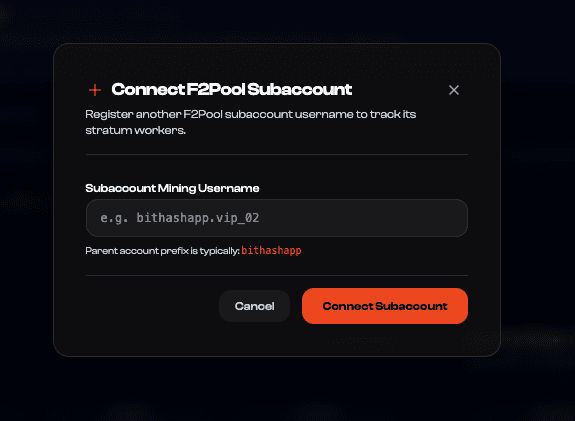
Figure 5.1: Subaccount security console demonstrating parameter updates, 2FA authorization prompts, and quarantine status monitoring.
6. Active Sessions & Security Audit Logs
Real-time auditing of login activity and device revocations
Your Security tab contains a complete audit ledger of all account interactions over the preceding 90 days:
• Login History: Records timestamp, IP address, geographical location, browser agent, and 2FA status for every authentication event.
• Active Device Sessions: Displays every phone, tablet, and desktop currently logged into your BitHash account.
• One-Click Global Sign Out: Selecting 'Terminate All Other Sessions' immediately invalidates JWT tokens on all external devices.
• Suspicious Activity Alert: If a login attempt originates from an unrecognized geographic region or TOR exit node, access is challenged with mandatory email OTP verification.
7. Frequently Asked Questions
Common profile and security questions
Key answers regarding credentials and profile security: